
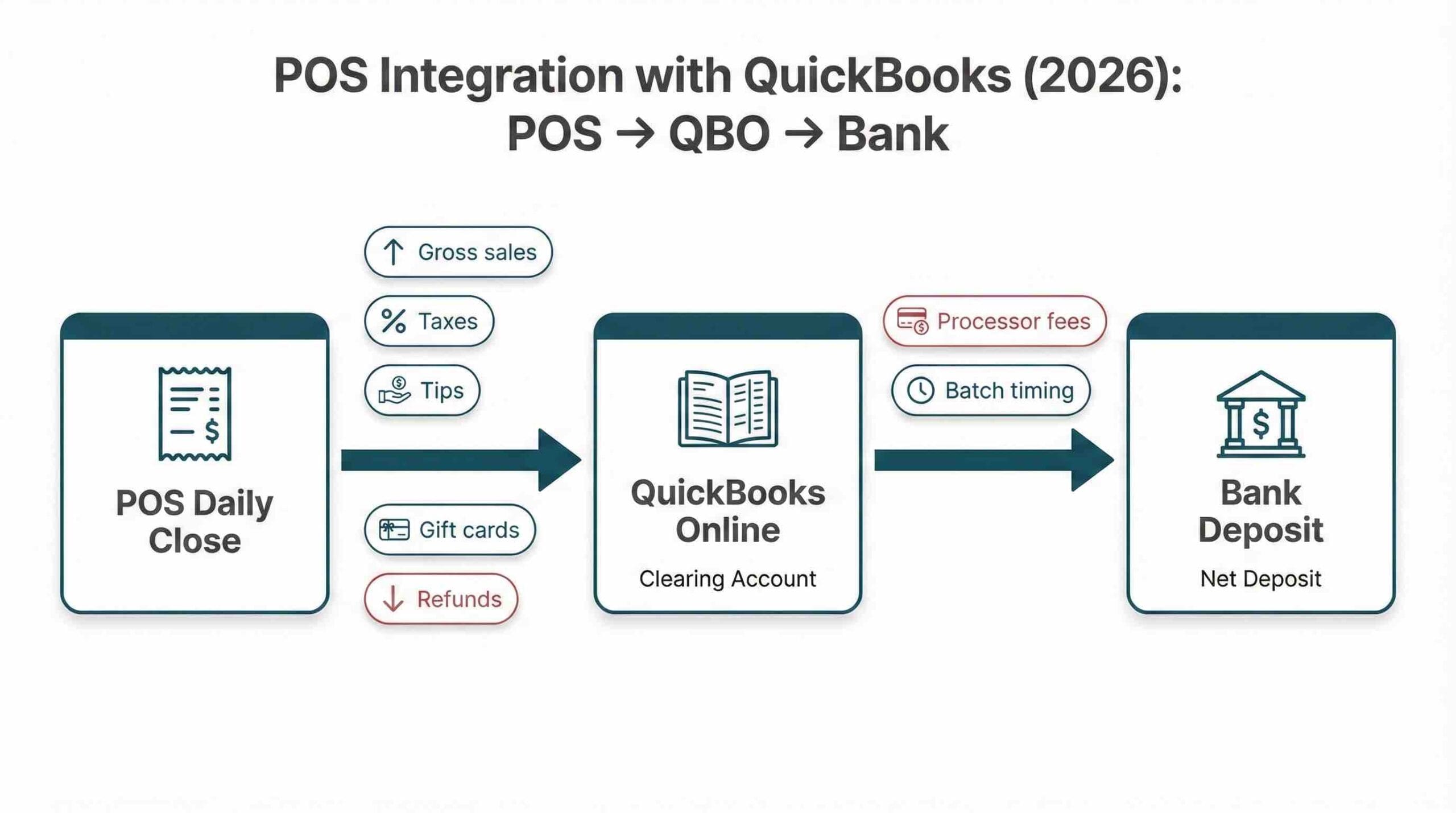
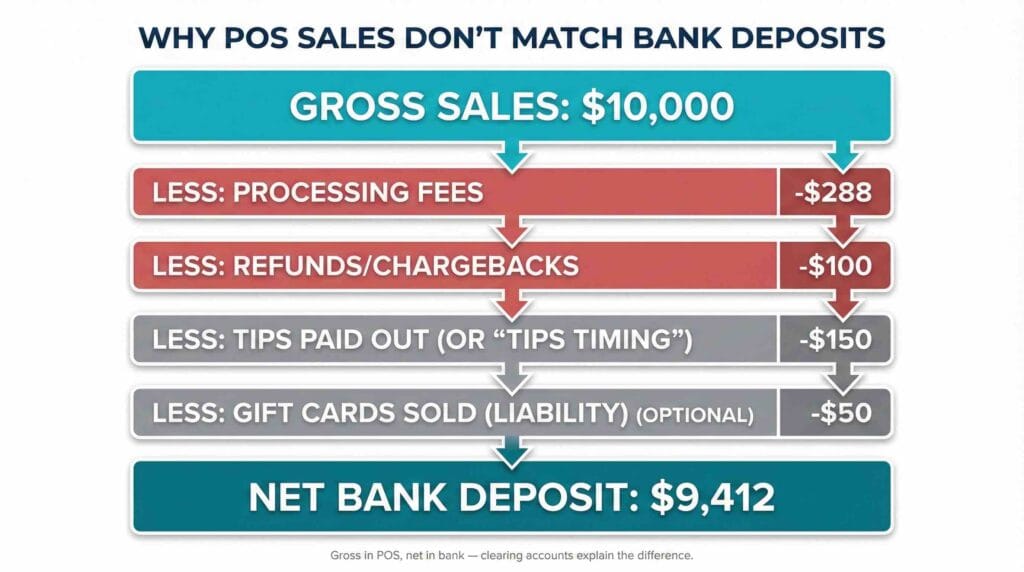
POS integration with QuickBooks can feel like it should be “set it and forget it.” In real life, it often turns into, “Why does the POS say $10,000 in sales but the bank only shows $9,412?”
If you run a restaurant, café, retail store, or hospitality operation, this gap is normal. What is not normal is letting it stay unexplained. When the sync is messy, owners stop trusting the numbers, managers lose time chasing variances, and month end becomes a repair job instead of a review.
This guide walks you through a clean, scalable setup for 2026. The goal is simple: your POS totals, QuickBooks Online (QBO), and bank deposits should tell the same story, even when tips, gift cards, and processor fees get involved.
Why POS to QuickBooks gets messy (and what it costs you)
Your POS usually reports gross activity. Your bank receives net cash.
That difference comes from predictable items that sit between the sale and the deposit, such as merchant processing fees, tips, refunds, chargebacks, and gift cards. Add batch deposits and mixed tax rates, and you get the classic problem: sales look right in the POS, but deposits never tie cleanly in QuickBooks.
Here’s what I see most often.
Processor fees get netted out before the money hits your bank. Tips might be collected on cards but paid out in cash, or pooled and paid through payroll. Gift cards are sold today but redeemed later, so they should sit as a liability until redemption. Refunds often hit as separate processor activity and do not always land on the same day as the original sale. And if your processor batches deposits, one deposit might represent multiple days, multiple locations, or multiple channels.
For decision makers, the cost shows up fast.
Gross margin becomes unreliable because discounts and comps are misclassified. Cash forecasting gets distorted because the bank deposit timing does not match sales timing. Staff spend hours at month end “plugging the gap.” And inconsistent sales tax mapping increases CRA risk if GST/HST or PST reporting does not tie to system reports.
If you want a quick internal read on whether the setup is working, ask this question: can you explain the difference between POS gross sales and bank deposits in under two minutes, with accounts that clear back to zero? If not, you’re operating with friction you can remove.
Choose your sync method (the decision that prevents chaos)
The method you pick for POS integration with QuickBooks determines whether your books stay clean or slowly turn into a junk drawer.
Most businesses have two options.
Option A: Daily sales summary (recommended for most SMBs)
This approach posts one entry per day, per location (or per POS close). It captures sales, taxes, tender types, tips, discounts, refunds, and gift card activity in a structured way.
It is the easiest to reconcile, the easiest to review, and the easiest to scale as you add locations or revenue channels.
Owners like it because it answers the question, “Did we make money today?” without stuffing QBO with noise.
Option B: Transaction-level sync (only if you truly need it)
Every receipt flows into QBO. It sounds “more accurate,” but it often creates duplicate entries, mismatched deposits, and long reconciliation sessions. QBO becomes slow and cluttered, and it becomes harder to spot real issues.
Transaction-level sync can work if you have strict controls, a clean item catalogue, and a clear reason for customer level detail inside QBO (not just inside the POS). For most restaurants and retail operators, the POS already provides the detail you need.
A rule of thumb that holds up in real life: if you want to know what sold at 2:07 pm, keep that in the POS. If you want owner-ready financials, use daily summaries and reconcile deposits through clearing accounts.
Correct mapping in QuickBooks (the clean chart of accounts model)
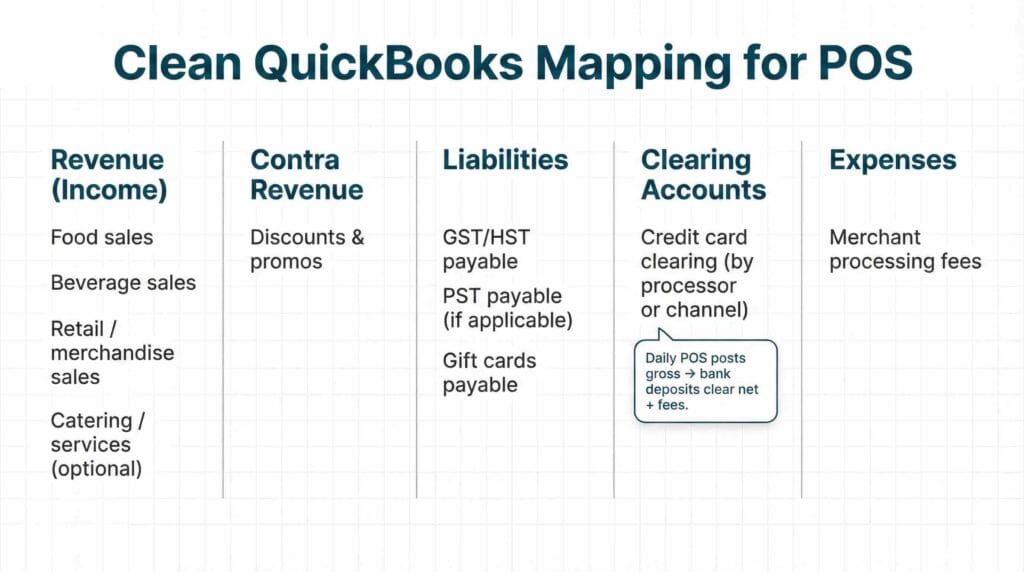
A clean model separates revenue from cash, and it separates what you owe (liabilities) from what you earn (income). That’s the backbone of POS integration with QuickBooks that actually reconciles.
Sales mapping that owners can use
Start by mapping sales into a few revenue streams that match how you manage the business. For a restaurant, that might be food, beverage, catering, and merchandise. For retail, it might be product categories or service lines. For hospitality, it might be rooms, food and beverage, and ancillary services.
Keep it simple. Your income statement should help you make decisions.
Discounts and promos are the common trap here. If you book discounts as an expense, your gross margin math gets muddy. Discounts work better as contra revenue so you can see gross sales, discounts, and net sales in a way that ties to operations.
If you want an extra layer of clarity, you can track discounts by reason codes in the POS and roll them up to one contra revenue account in QBO.
Taxes: keep payable accounts clean and consistent
Your POS should calculate tax. QBO should store the tax payable totals in the right buckets.
For Canadian businesses, that usually means GST/HST payable and, where applicable, PST payable. If you operate in multiple provinces or have mixed tax rules, your mapping needs to reflect that reality.
The common failure point is when tax settings change in the POS but the integration mapping does not get updated. Another problem is tax exempt sales that get lumped into taxable categories. That can distort what you remit and create headaches in an audit.
For official background on GST/HST rules and reporting, use the CRA GST/HST guidance for businesses.
If you’re in BC and PST applies, keep your setup consistent with the BC PST information for businesses.
Payments and deposits: Undeposited Funds vs clearing accounts
This is where most messy integrations can be fixed.
Undeposited Funds in QBO is useful when you receive individual payments and later group them into a deposit, like a service business that takes cheques. A retail or restaurant POS environment usually needs something different.
For POS integration with QuickBooks, I prefer clearing accounts for each major tender type that gets batched and deposited. At minimum, that means a credit card clearing account. Many businesses do even better with separate clearing accounts by processor (for example, one for Moneris and one for Stripe) or by channel (in-store processor versus delivery app payouts).
The daily POS summary posts gross card receipts into the clearing account. Then, when the net deposit hits the bank, you record the deposit against the clearing account and book the merchant fee to a fee expense account. When you’ve matched it correctly, the clearing account returns to zero, or close to it, after timing differences clear.
That “returns to zero” feature is not just tidy bookkeeping. It’s a control. If the account doesn’t clear, something is missing: a deposit, a refund, a chargeback, or a batch timing delay.
Fees and tips: separate the accounting from the cash movement
Merchant fees are an expense. The bank deposit is net. That means your books need to show both, consistently.
Tips are where things can go sideways fast because tips touch payroll, not just sales.
There are a few common realities: tips collected on cards and paid out in cash at the end of shift, tips pooled and paid through payroll, and tips paid out by the employer versus controlled directly by staff.
The key is consistency. Your POS daily summary should capture tip totals clearly, and your payroll process needs to use a stable tip reporting method by pay period.
If you want a deeper payroll compliance lens, cross-check your practices against the CRA payroll information for employers.
And if tips regularly create payroll headaches, it’s worth reviewing controls that trigger CRA attention. See our guide on CRA payroll audit red flags and use it as a checklist for tightening up documentation and consistency.
Gift cards: treat them as a liability until redemption
Gift cards should not hit revenue when sold. They represent an obligation to provide goods or services later.
A clean setup books gift card sales to a liability account (gift cards payable). When the gift card is redeemed, you reduce the liability and recognize revenue at that time, with taxes handled correctly on the sale.
This single fix often makes monthly revenue reporting more accurate, especially for businesses with seasonal spikes in gift card sales.
Refunds, voids, and comps: keep the story readable
Refunds should follow the original payment method where possible, especially for processor reporting. Voids and comps should be tracked separately from discounts so you can see what is happening operationally.
A comp is not the same as a promo. A void is not the same as a refund. If you lump them together, you lose a useful signal about controls and staff training.
If your POS allows manager approvals and reason codes, use them. It is much easier to explain margins when you can see whether margin erosion comes from planned promos or operational leakage.
The POS to bank reconciliation workflow (daily plus weekly)
When POS integration with QuickBooks is working, reconciliation stops being a monthly fire drill. It becomes a routine.
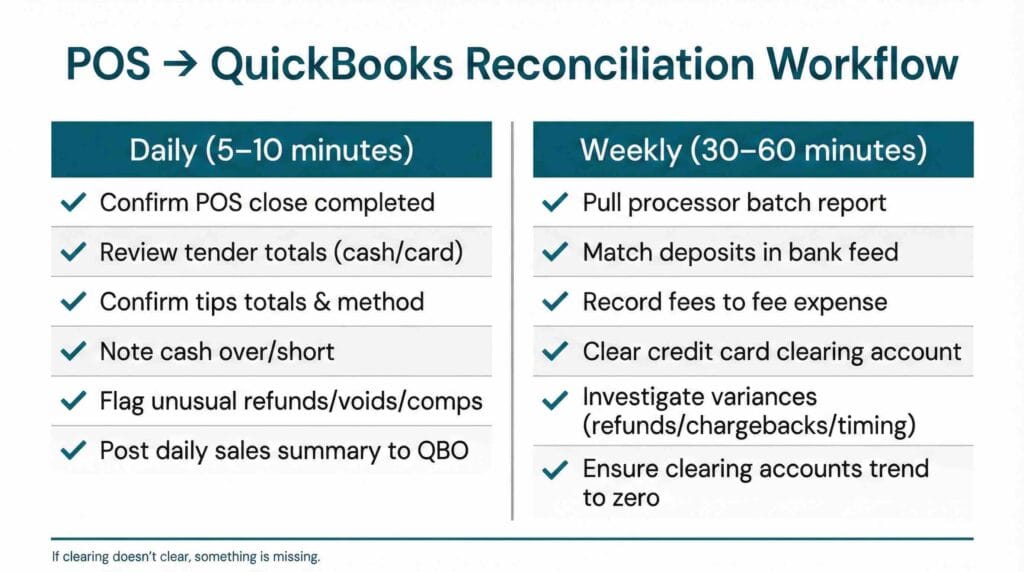
I like to structure it in three layers: daily, weekly, and month end.
Daily close that takes 5 to 10 minutes per location
The daily goal is not to reconcile the bank. The goal is to confirm the POS close is complete and the numbers are internally consistent.
You want to confirm sales totals, tax totals, tips, cash over or short, and any unusual refunds or voids. If you use cash, cash over or short needs to be tracked consistently because it can signal training issues or control gaps.
Then you post the daily sales summary to QBO through your integration or through a controlled import.
Weekly deposit matching that clears the clearing accounts
Weekly is where you match processor batches to the bank deposits.
You pull the processor batch report, match each deposit in the bank feed, and clear the clearing account for the gross amount while booking fees. When you do it weekly, the clearing account stays tight, and you do not end up with a month of drift.
If you are not reconciling your bank regularly, it’s worth revisiting the habit and the “why.” Our post on reconciling your bank account every month is a good refresher and a practical standard to set internally.
Month end review that catches drift early
Month end is where you review “drift accounts”: tax payable balances, gift card liability, clearing accounts, chargebacks and negative days, and unusual refunds or comps trends.
This month end review should take about an hour if your daily and weekly habits are in place. If it takes five hours, the problem is almost always in the setup or the weekly clearing process.
Multi-location and multi-channel considerations (where teams break)
Multi-location businesses often think their problem is “we need better reporting.” Most of the time, the real issue is inconsistent mapping.
If one store maps “Delivery” as revenue and another maps it as a clearing deposit type, your consolidated financials become confusing. If one location includes tips in sales and another does not, your margin comparisons become meaningless.
When you have multiple locations or channels, you want two things: consistent categories across stores and reporting that separates location and channel.
That might look like classes or locations in QBO, paired with a small set of revenue categories that are consistent. It can also mean separate clearing accounts if multiple locations share one bank account, so you can still trace which batch belongs to which store.
If you’re also managing inventory across locations, the integration landscape matters. Our guide to QuickBooks inventory integrations in 2026 is a strong next step for operators who need the inventory angle alongside POS data.
KPI dashboard for operators (what to watch monthly)
A clean POS integration with QuickBooks is not just about tidy bookkeeping. It’s about getting to KPIs you can actually trust.
Gross margin by category and location is the big one. If you cannot trust margin, you cannot price confidently, schedule labour properly, or spot waste.
Then look at refunds, voids, and comps as a percentage of sales. You do not need to police every transaction, but you do want thresholds that trigger review.
Discounts as a percentage of sales are also useful, especially if you run regular promos. If discounts creep up quietly, you can lose margin without noticing until the bank account feels tight.
Cash over or short is a simple control metric for any cash handling environment. If it is consistently negative, you may have training issues, process gaps, or theft risk. If it is consistently positive, you may have POS entry issues.
Labour to sales is another key metric that benefits from clean mapping between POS tips and payroll totals. If you want practical payroll alignment ideas, see Restaurant payroll Canada tips and use it to tighten up the handoff between POS reporting and payroll processing.
And if you want restaurant-specific bookkeeping tactics to support margin and cash flow, our post on bookkeeping tips for restaurants to maximize profits pairs nicely with this KPI section.
Common setup mistakes I see in 2026 (and the quick fixes)
Here are a few patterns that show up repeatedly when clients ask why their POS numbers “never match.”
First, posting POS activity straight into the bank account without a clearing account. That makes deposits look like sales and hides fees, refunds, and timing differences.
Second, booking gift card sales as revenue. That inflates sales and makes future periods look weaker when redemptions happen without a matching sale.
Third, inconsistent tax mapping, especially where some sales are tax exempt or where settings were changed mid-year.
Fourth, tips not aligning between POS and payroll. Even if the total dollars are close, mis-timing by pay period causes constant reconciliation pain.
Fifth, transaction-level sync in QBO without a strong reason. If you need item-level analytics, you can usually keep that in the POS and bring only the daily summary into QBO.
If any of these sound familiar, the fix is usually a clean re-map and a controlled reconciliation workflow, not more data.
When you should bring in help
You can do a lot in-house if you have a capable bookkeeper and a stable POS integration. But there are situations where it’s worth getting an accountant or bookkeeping team involved quickly.
If your clearing accounts never clear to zero, you are missing money movements or duplicating entries. If sales taxes do not tie between the POS report and QBO, you could be remitting the wrong amount. If tips do not match payroll, you may be creating employee trust issues and compliance risk. If you have multiple locations and cannot confidently compare performance, your mapping structure probably needs standardization.
At that point, a cleanup project can pay for itself by reducing monthly close time and improving decision quality.
POS to QBO cleanup and ongoing close
If your POS and QuickBooks Online have been “kind of” synced for a while, a reset can be the fastest path to clean reporting.
A typical cleanup includes a review of revenue categories, tax mapping, clearing accounts, gift card liability handling, refunds and chargebacks, and tip workflow alignment with payroll. It also includes a practical close routine so your team knows what to do daily and weekly.
The outcome you want is boring in the best way. Bank deposits reconcile smoothly, clearing accounts clear, tax payable is reliable, and your monthly reports match what you feel in the business.
If you’re troubleshooting the mechanics of QBO itself, Intuit’s QuickBooks Online support and help resources can be helpful for product-specific steps. For broader business-facing guidance, CPA Canada resources for business owners are also worth bookmarking.
At Valley Business Centre, we’ve supported businesses across Metro Vancouver, Whistler, Squamish, and the Sea to Sky Corridor for more than 30 years with bookkeeping, payroll, tax preparation, and cloud accounting systems.
If you’re a BC restaurant owner, retailer, or hospitality operator in Vancouver, Surrey, Burnaby, Richmond, Coquitlam, or North Vancouver and you want your POS numbers to match QuickBooks without last minute stress, reach out. We can help you tighten up tracking, reconcile deposits and payouts, and keep documentation organized so year end feels straightforward instead of stressful.
